
Google Meet
Google LLCCommunication
4.4708.23K Reviews
- Version
- Varies With Device
- Installs
- 10.00B
- Age Rating
- Everyone
Screenshots



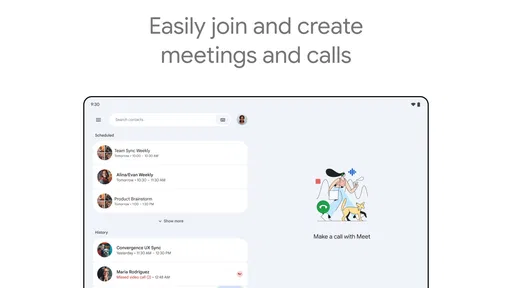
Our Review of Google Meet
 Analysis by Appyee
When I judge a video-call app, I pay attention to more than whether a call connects: I want to know if I can find my way around without fuss, follow a conversation in a noisy room, and take part when a screen or device gets in the way. In my experience, Google Meet is at its best when a group needs a straightforward way to talk across phones, tablets, computers, and Google’s wider ecosystem. It is a free communication app from Google LLC, rated for Everyone, and its broad reach makes it familiar to many people before a meeting even begins.
Simplicity at Its Best
First off, Google Meet is all about keeping things simple. If you’ve ever used any Google service, you’ll feel right at home. The interface is clean, intuitive, and minimalistic, making it super easy to navigate. You don’t need to be a tech wizard to figure it out, which is a huge win in my book!
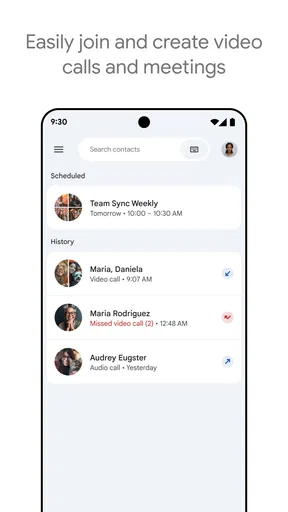
All you need is a Google account, and you’re ready to go. Scheduling a meeting is as simple as pie. Just hop onto Google Calendar, set your date and time, and boom, your invitees get an email with the link. No more fumbling around with lengthy sign-up processes or confusing instructions.
Readability and navigation in everyday calls
The uncluttered feel matters most when I’m joining a call in a hurry. The main task—getting into a conversation—doesn’t require learning a complicated meeting dashboard, and the familiar Google account flow can be reassuring for people who already use Gmail or Calendar. Google Meet has been around since Aug 16, 2016, and its scale is reflected in more than 10 billion installs, though popularity alone does not guarantee that every person will find the controls comfortable.
A useful habit is to open the meeting link a little early when the call matters. That gives me time to check which microphone and camera are active, settle the device, and avoid sorting out small controls while someone is already speaking. If I’m invited by someone else, I also read the meeting details first rather than relying on memory; that simple step reduces last-minute confusion, especially when switching between a calendar invitation and the call itself.
Quality That Speaks Volumes
Now, let’s talk about the quality. I’ve been on more virtual meetings than I’d like to admit, and I can say the video and audio quality on Google Meet is top-notch. Even with a less-than-perfect internet connection, it holds up pretty well. Plus, the noise cancellation feature is a lifesaver when your neighbor decides to start mowing the lawn mid-meeting.
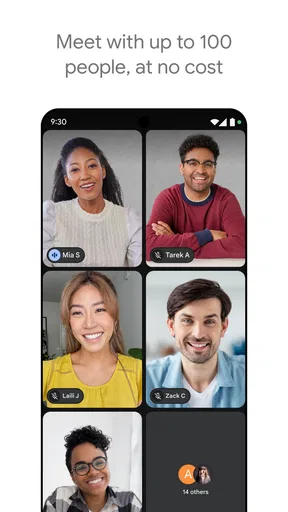
One of the features I love is the ability to change the layout. Whether you want to focus on the speaker or see everyone’s lovely faces in a grid, you’ve got options. And let’s not forget the background blur option. It’s perfect for those days when you haven’t quite tidied up the room.
Motor and sensory considerations
For someone who finds constant visual movement tiring, changing the layout can make a real difference: I can give the active speaker more attention instead of scanning a grid throughout a long discussion. Background blur can also reduce the distraction of a busy room, although it is a visual aid rather than a substitute for a quiet space or a clear camera image. I would still suggest positioning the phone or tablet securely before joining; holding it throughout a call can become uncomfortable and make it harder to use the on-screen controls.
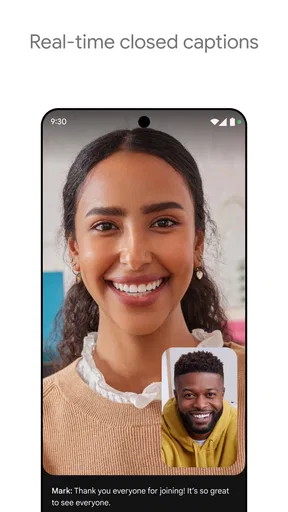
Live captions can help people follow speech when hearing is difficult, when a speaker is quiet, or when I’m in a place where turning up the volume would disturb others. They are also handy for catching a name or phrase I missed. I treat captions as support, not a perfect transcript: unfamiliar names, overlapping voices, and unusual pronunciations can still be hard to follow. If accuracy matters, I make room to ask the speaker to repeat or clarify rather than assuming every caption is right.
There is a practical trade-off between video and attention. Keeping the camera on can help a group read facial expressions, but it is not always comfortable or possible, and the app is still useful for a conversation when I choose not to show video. For a meeting where facial cues are essential, I would tell the group in advance if I need to keep my camera off, so nobody mistakes that choice for disengagement.
Collaboration Made Easy
What really sets Google Meet apart is its seamless integration with other Google services. Need to share a document or presentation? It’s just a click away. You can easily present your screen or specific tabs, which is perfect for those impromptu brainstorming sessions.
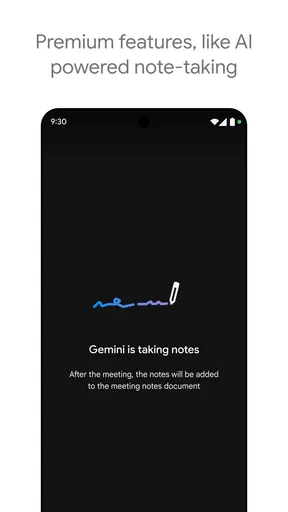
And if you’re into multitasking, join the club. You can have your Google Docs open on one side, and the meeting on the other, jotting down notes as you go. It’s like having your own personal command center.
Situational access: home, work, and on the move
A realistic use for me is a quick family call where one person joins from a phone, another from a laptop, and someone else is already comfortable with Google Calendar. The familiar invitation link cuts down on the “which app should I install?” conversation. For a work check-in, I can share a specific browser tab instead of exposing my whole desktop, which is a more considerate choice if I have unrelated windows open. Before presenting, I close private material and check that I’m sharing the intended screen or tab; this small pause prevents an avoidable awkward moment.
For collaborative work, I find Meet most useful when the group already has its notes or documents in Google tools. One person can explain an idea while another records decisions in a document, rather than trying to remember every detail after the call. It is less compelling if a team’s files and workflow live in another ecosystem: in that case, a platform closely tied to those existing tools may reduce app switching. Meet’s convenience comes partly from fit, not from being the best choice for every organization.
Google’s description of the service spans Android and iOS phones, tablets, Google Nest, and the web, which makes it suited to households and teams that do not all use the same kind of device. In practice, the best device is the one with a stable connection, usable audio, and a screen you can comfortably watch. A phone is convenient for a short call, while a larger display is easier when the group is discussing a shared presentation or several people are taking turns.
Remaining barriers and trade-offs
Meet is not a magic fix for difficult call conditions. A weak connection can still make voices break up or video feel choppy, and noise cancellation cannot remove every distracting sound. If the conversation is important, I try to find a quieter spot, use headphones if they are available, and let others know if I need a moment to reconnect. Those steps often matter more than changing a setting during the call.
There is also a difference between being able to join and being able to participate comfortably. Small phone screens can make a busy meeting harder to follow, while switching between the call and a document can demand more attention than a single-screen setup. Someone who needs a highly controlled meeting environment, a specific collaboration workflow, or extensive accommodations may prefer a different service that better matches those needs. I would not choose Meet solely because it is familiar if the group’s requirements point elsewhere.
Compared with the usual alternatives, Meet’s clearest advantage is its low-friction connection to Google accounts, Calendar, and documents. Other video-conferencing apps may suit people who already rely on their own workplace platform or want a different set of meeting controls. I see Meet as a sensible everyday option for quick conversations and Google-centered collaboration, rather than a reason to move an entire organization away from tools it already uses successfully.
Security and Accessibility
Security is a big deal these days, and Google takes it seriously. Meetings are encrypted, and hosts have control over who can join. Plus, there’s no need to worry about Zoombombing here!
Accessibility is another area where Google Meet shines. Live captions are available, which is fantastic for inclusivity. It ensures everyone can follow along, regardless of their hearing ability. And for those who prefer not to join a video call, there’s always the dial-in option.
I’d use host controls as part of good meeting habits rather than assume they remove every risk. For a private or sensitive discussion, I check the invitation and attendee list carefully and avoid sharing information that does not belong in the call. That is a more realistic way to think about online meeting safety than treating any single app as a guarantee.
Meet has a 4.4 average from around 12 million ratings, with roughly 707,000 written reviews. Those figures suggest a widely used service, but they do not answer the personal question of whether its layout and call flow suit you. The best test is a short, low-stakes call with someone you know: try captions, change the layout, and see whether the controls feel manageable on your own device.
The Verdict
So, what’s the final word? If you’re looking for a reliable, easy-to-use platform for your virtual meetings, Google Meet is a stellar choice. It’s packed with features that make online collaboration a breeze without overwhelming you with unnecessary extras.
Whether you’re catching up with friends, hosting a virtual workshop, or having a team meeting, this app has all your needs covered. Give it a shot, and you might just find it becomes your favorite meeting tool too!
Who I’d recommend it to
I’d recommend Meet to people who want a familiar route into a video call, especially if their invitations, schedules, and shared files already sit in Google services. It is also a good fit for mixed-device groups that need to talk without making everyone adopt the same type of phone or computer. The app is free, so trying it for a casual conversation does not require a purchase decision.
I would steer someone toward another option if their workplace depends on a different collaboration suite, if they need a meeting interface with controls they can customize more extensively, or if their group finds live video stressful and would rather use a simpler audio-first routine. For anyone who depends on captions, I would test them in the actual setting where calls happen and keep a backup way to clarify important information. That is a more useful measure of fit than a general claim that one app is accessible to everyone.
An inclusive everyday choice, with limits
What I appreciate most is that Meet can lower several ordinary barriers at once: joining from a familiar account, following speech with captions, choosing a less distracting view, and sharing a document without turning a conversation into a complicated setup. Those details make it easier for different people to participate on their own terms. They do not remove every obstacle, and the experience still depends on the device, connection, room, and meeting habits of the people involved.
My overall view is positive but practical. Google Meet is a strong everyday communication app when simplicity and Google integration matter, and its broad adoption—over 10 billion installs—means many friends, relatives, and colleagues may already recognize it. I would start with a short call, adjust the view and audio to suit the situation, and keep another option in mind for groups whose accessibility or workflow needs go beyond what Meet comfortably supports.
How Google Meet Compares
Full ComparisonChoose Meet for larger video meetings, WhatsApp for private everyday messaging, and Messenger for Facebook-connected chats and expressive calls.
| App | Developer | Rating | Price |
|---|---|---|---|
 Google MeetThis App | Google LLC | 4.4 | Free |
 WhatsApp Messenger | WhatsApp LLC | 4.6 | Free |
 Messenger | Meta Platforms, Inc. | 4.7 | Free |
Verdict
Strengths of Google Meet
- High-quality video and audio calls.
- Seamless integration with Google Workspace.
- User-friendly interface for easy navigation.
- Real-time captions enhance accessibility.
- Supports large groups up to 250 participants.
Limitations of Google Meet
- Requires a Google account to use.
- Limited features in the free version.
- Occasional connectivity issues reported.
- Lacks advanced customization options.
- Mobile app can drain battery quickly.
Other Releases by Google LLC
View All
Google Calendar
Productivity4.6

Google Messages
Communication4.6

Tools4.0

Google TV
Video Players & Editors3.9
Similar Picks in This Category
View AllGoogle Messages
Google LLC4.6

Gmail
Google LLC4.1

Google Chrome
Google LLC4.1

WhatsApp Messenger
WhatsApp LLC4.6

Carrier Services
Google LLC4.2

Contacts
Google LLC4.3
You May Also Like
View All

Frequently Asked Questions
What are the main features of Google Meet?
Google Meet offers high-quality video conferencing with features like screen sharing, real-time captions, and breakout rooms. It supports meetings with up to 250 participants and integrates seamlessly with Google Calendar for easy scheduling. The app also provides robust security measures such as encryption and the ability to admit or deny participants.
Is Google Meet free to use?
Google Meet offers a free version that allows meetings up to 60 minutes long with up to 100 participants. For longer sessions and advanced features like larger meeting sizes and recording capabilities, Google Workspace plans are available at various price points, catering to different business needs.
Can I use Google Meet on mobile devices?
Yes, Google Meet is available on both Android and iOS devices. The app can be downloaded from the Google Play Store or the Apple App Store. It offers the same key features as the desktop version, ensuring a seamless experience across all devices, including easy joining of meetings through a link or calendar invite.
How secure is Google Meet?
Google Meet prioritizes security with features such as encryption in transit, anti-hijacking measures, and the ability for hosts to control who can join the meeting. These security protocols ensure that your meetings remain private and secure, making it a reliable choice for both personal and professional use.
Do I need a Google account to use Google Meet?
While a Google account enhances the experience by providing seamless integration with Google Calendar and Contacts, it is not strictly necessary to join a Google Meet call. Guests can join a meeting via an invitation link without a Google account, although some features might be limited.
